
How to set up variant option buttons & color chips
Overview
Variant options allow you to group variants under a parent product and allow users to select by attributes like Color, Size, Flavor, etc.
Variant options are configured through the catalog_enrichment file where you will determine the variant option and value (option = Size; value = Large). Read more about variant options.
Variant options can be displayed with two different UX treatments:
Buttons & Color Chips
Variant options are displayed as clickable buttons all displayed to the user on a single PDP. This approach also supports clickable chips for colors.
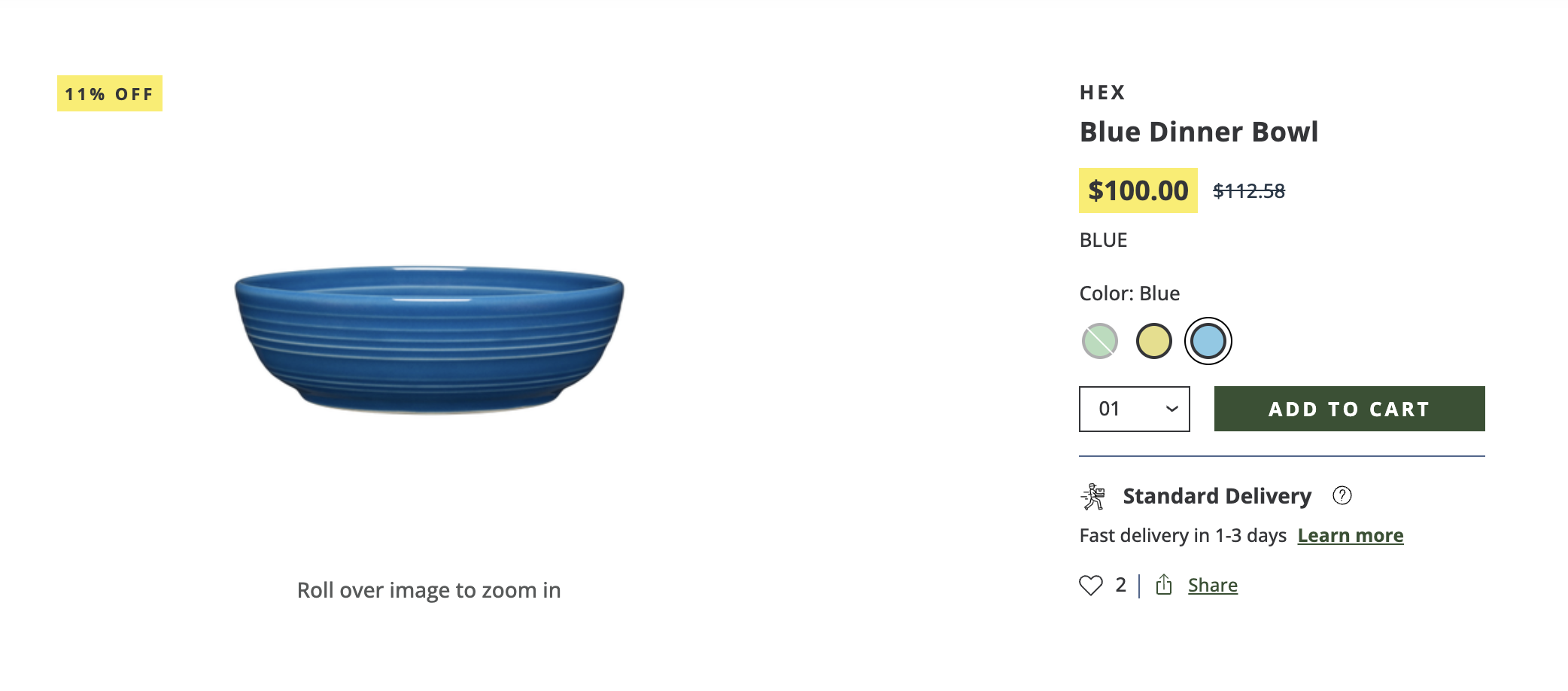
Dropdown
Variant options are displayed in selectable list format in text only
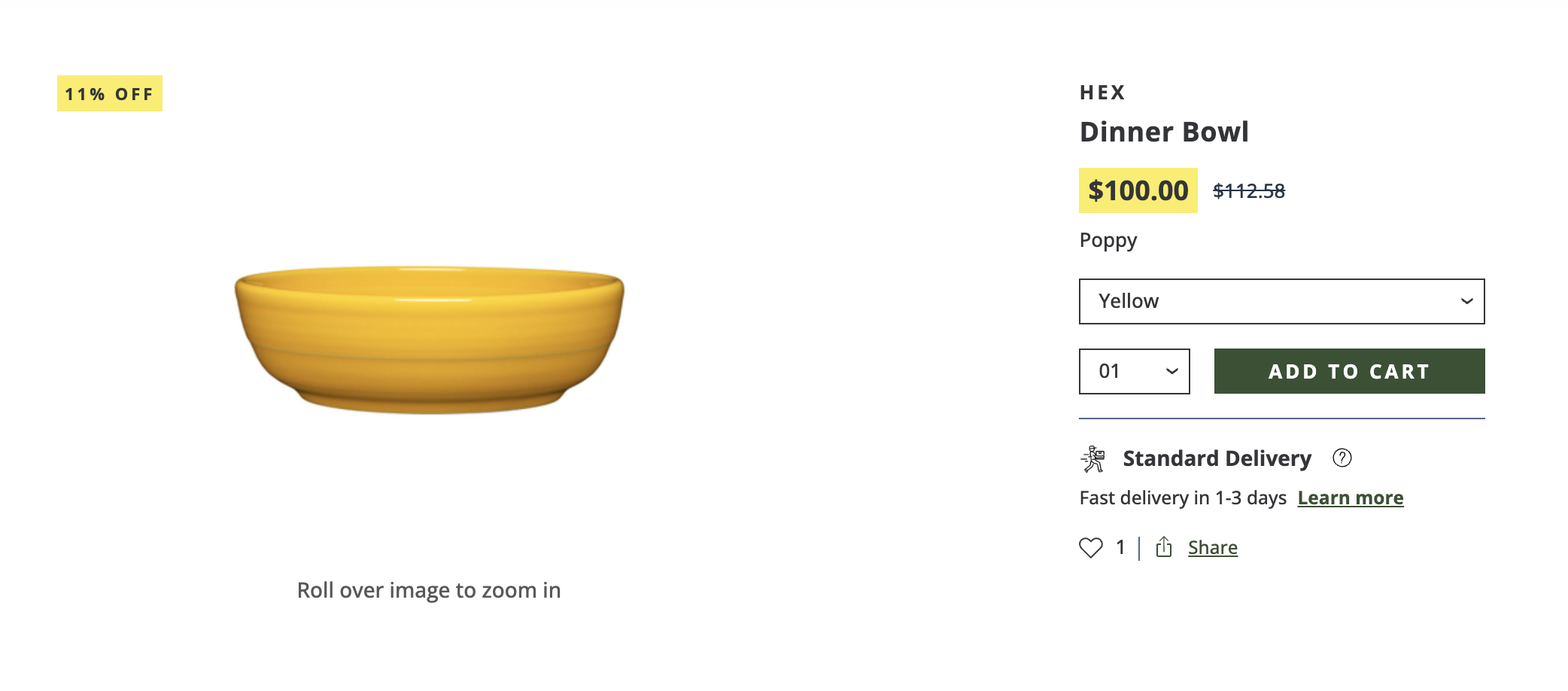
Setting up buttons & color chips
To configure variants and the PDP to display variant options as buttons and/or color chips, follow the steps below:
Configurable PDP Page
- In Foxtrot, navigate to
Pagesthen filter results byConfigurable PDP - Click on the option where Slug = pdp
- Click edit on the PDP Variant Option Display section
- Select
Selectable Buttonsin the dropdown then click Apply - Save the page
Variant options setup
For existing, non-color variant options, there are no setup steps required. The variant options will display as buttons with text, however, color swatches will require additional configuration via the catalog enrichment file:
- Identify the variants to leverage the color swatches
- In the variant_option field, we leverage color hex values to ensure the color is an exact match to the product and a text identifier for clarity to the customer via the following format:
- Color:{Hex Code}/{Color Name}. Note: Color swatches only will work when the variant option = Color
- Upload the catalog enrichment file with the updated variants via the SFTP
Updated 3 months ago