
Overlapping Delivery Areas
This feature is only applicable if enabled for your organization
Overview:
- This feature allows one location identifier (i.e. city/ward or postal code) to be mapped to multiple Fulfiller Locations (i.e. a store, mall, or supermarket) and for the user to select the store they want to shop.
- For the feature:
Stores,Malls&Fulfiller Locationscan be used interchangeably:- Customer facing: We use
Stores(i.e. select your store). This is so that the copy supports both malls & supermarkets. - System Language: In the Spresso System, each "Store" or "Mall" (i.e. AEON Mall Long Biên) is set up as a Fulfiller Location. For that reason, in the Foxtrot Admin Console, stores/malls may be referred to as Fulfiller Locations.
- Customer facing: We use
Key Information:
- Existing addresses have been backfilled with the current store before overlapping mapping changes take effect. This guarantees that all saved addresses have an initial store assigned, which then becomes the user’s default mall.
- If location is supported by multiple stores, user will be able to select or update their store.
- If location is only supported by one store, that store will be automatically applied.
- Carts are now saved at the store level. If a user switches their store, their cart will update entirely. See details in cart section.
- There is an underlying principle with this feature that aims to minimize interruptions to the user experience. We aim to show the store selector only when necessary and appropriate.
- Whenever possible, we will keep the user’s current store active. This is because a new store means a new cart, and we want to avoid that unless the user explicitly goes to change their store.
- There are no changes to how SKUs are ingested in the inventory file. You will continue to only have one line for each SKU/ Fulfiller Location combination in the inventory file.
- There are no changes to how mixed cart and standard delivery functions. If a user selects to shop from a mall, they will be able to shop that malls express and standard items when applicable.
Initial Landing - Location Capture
- Guest users visiting the site for the first time will still need to enter their location:
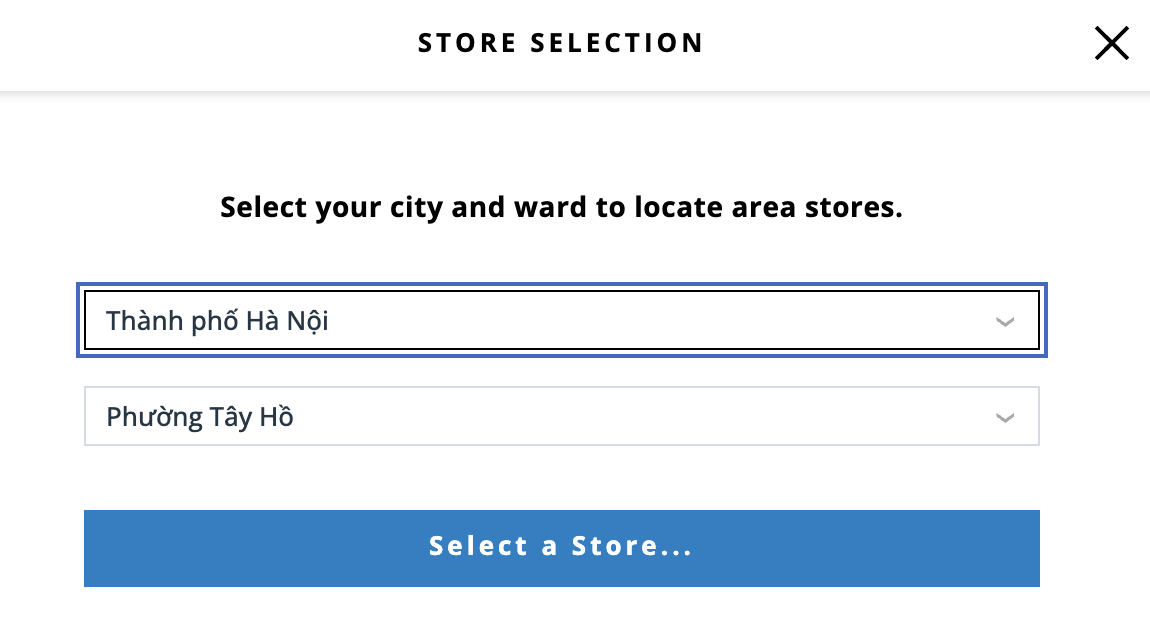
- If location entered is only serviced by one mall, the user will automatically be shopping in that mall. They will not take the action to select a store.
- If location entered is only serviced by Nationwide Malls (marked
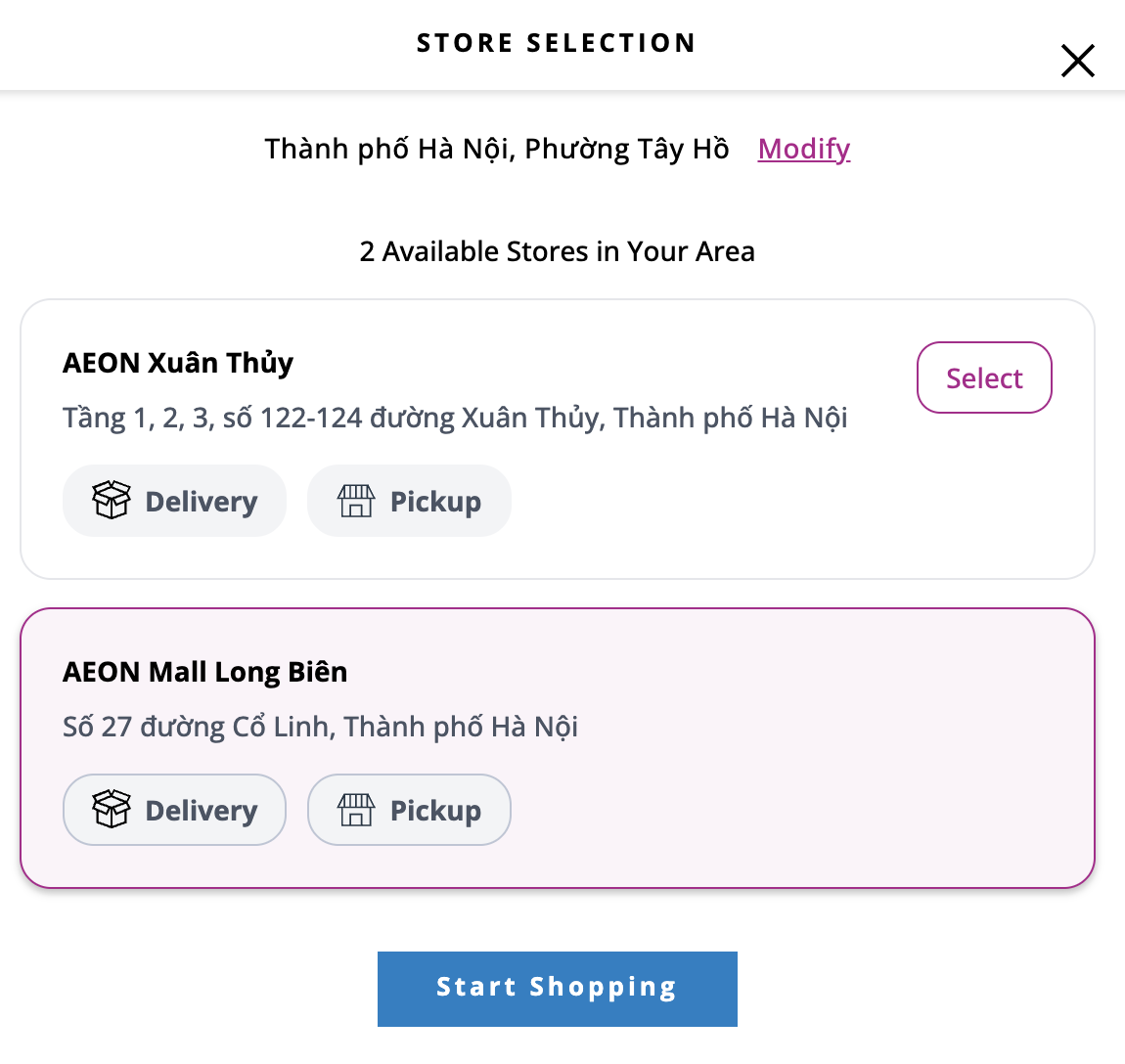
Always Complements Fulfiller Locationsi.e. AEON Fulfillment Center), the user will automatically be shopping in that mall. They will not take the action to select a store. Nationwide Malls will never appear in the select store modal. - If location entered is serviced by multiple malls, the Select Store modal will appear:
-
Modal will include the location they submitted and the number of stores available
-
Each store will include the name, store address, and available fulfillment methods
-
User can click on their desired store and start shopping
-
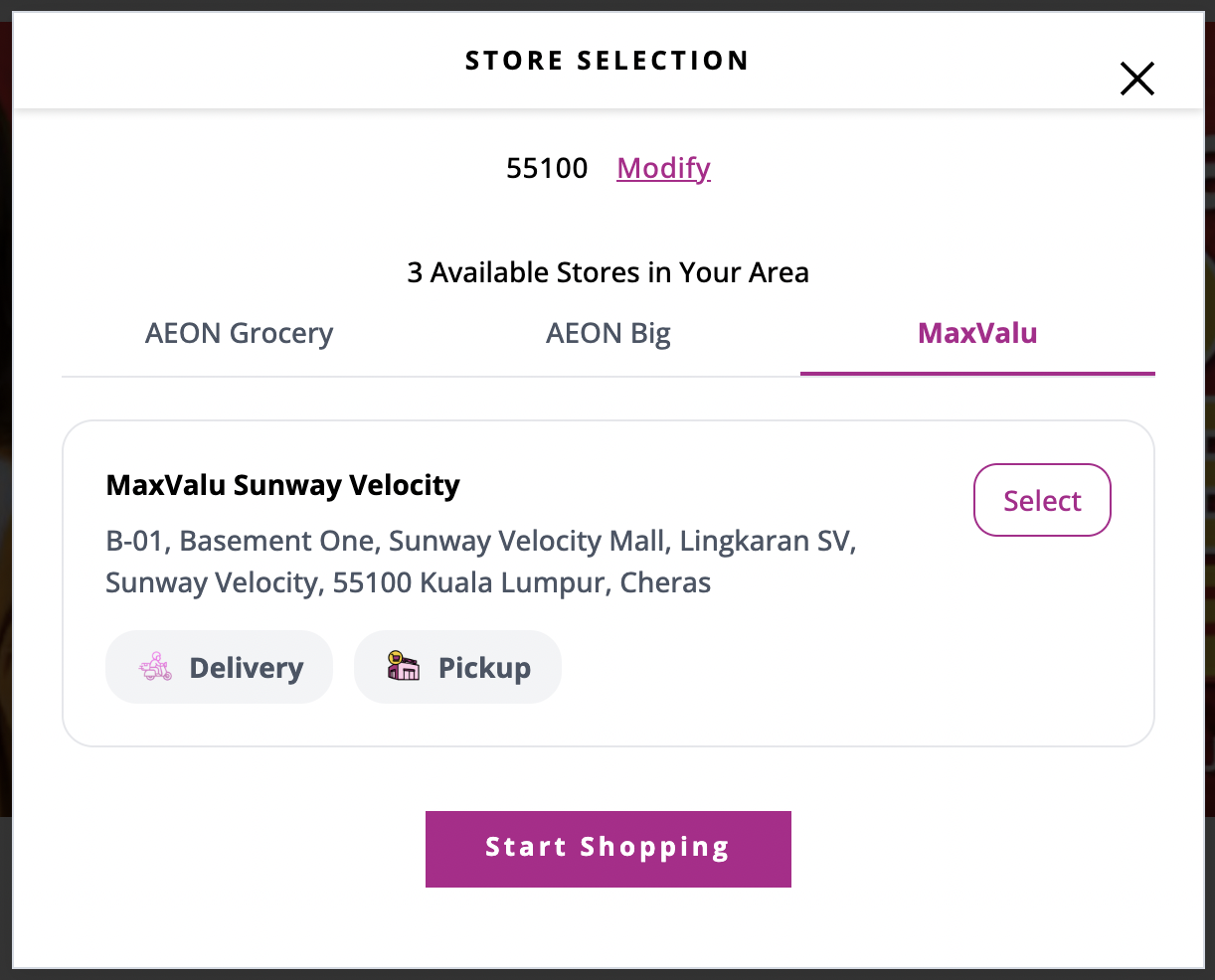
If applicable for your organization, stores will appear in grouped tabs:
-
Store groupings are managed on the Fulfiller Location page in Foxtrot and will be set when new malls are set up.
-
Tabs will only appear if stores are available for those groupings. For example, if no AEON Big malls are available for a postal code, that tab will not appear.
-
-
- After submitting, the store name will appear in the navigation for the user:
- On iOS the store name will appear on the account tab
- On Android, the store name will appear in the side menu

- Available products and pricing are determined by the store selected.
Account Creation
- If the location provided during account creation is supported by the store selected on initial landing, that store will be applied automatically and the Select Store modal will not appear.
- If the location provided during account creation does not match the initially selected store, and that location is served by multiple stores, the Select Store modal will appear.
Navigation/Account Tab/ Side Menu
-
User's can view and update their selected store from the navigation
- On Web this placement is in the navigation
- On iOS this placement is on the account tab
- On Android this placement is in the side menu
-
If user's location is mapped to multiple stores, navigation placement will include a dropdown icon indicating multiple stores are available:

- In this case, clicking the placement will open the select store modal where the user change their store at any time
-
If user's location is only mapped to one store, this placement does not include a dropdown icon:

- In this case, clicking the placement will prompt the user to update their address
Cart
- As part of this feature, carts are now saved at the store/mall/fulfiller location level.
- A user's cart is specific to the store they are shopping
- If a user adds item to cart while they are shopping Store A, and then switches to Store B, their cart will update entirely.
- All carts will be saved, so in the case above if the user switches back to Store A, their previous cart would be restored.
- Any time that a user switches to a store for the first time, their cart will be empty.
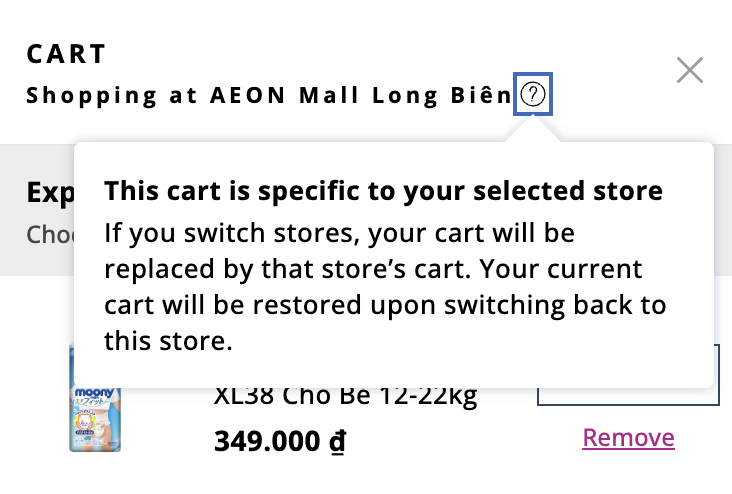
- We have added a new "Shopping At" message to cart, so user's are explicitly aware of the cart they are shopping. Any time a user switches stores, this placement will update immediately:
Address Page
-
All saved addresses will display with the most recently selected store for that address.
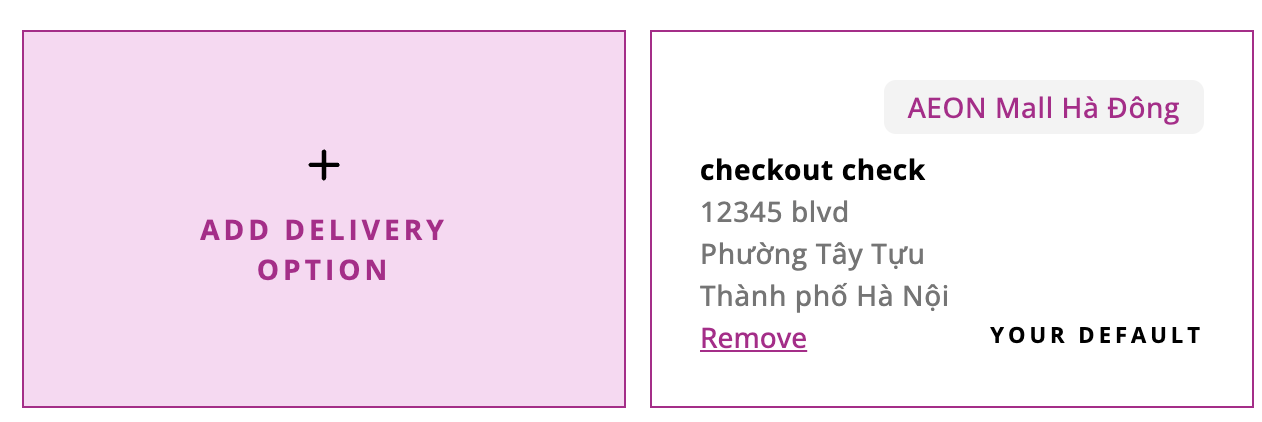
-
If a user switches to a saved address that is supported by their current store, the current store will be applied to that address.
- This is done to avoid unexpected cart changes. We will always keep the current store whenever possible.
-
If a user adds a new address that is supported by their current store, that store will be selected by default.
- In this case, the user will not see the select store modal.
- This is done to avoid unexpected cart changes. We will always keep the current store whenever possible.
-
If a user adds a new address that is not supported by their current store, but only has one store available, the only available store will be selected by default. The select store modal will not appear.
-
If a user adds a new address that is not supported by their current store, and has multiple stores available, the select store modal will appear.
Checkout
- In checkout, the same rules apply as on the Address Page, the only difference is that if an address change at checkout causes the user's cart to update we will display a warning modal:
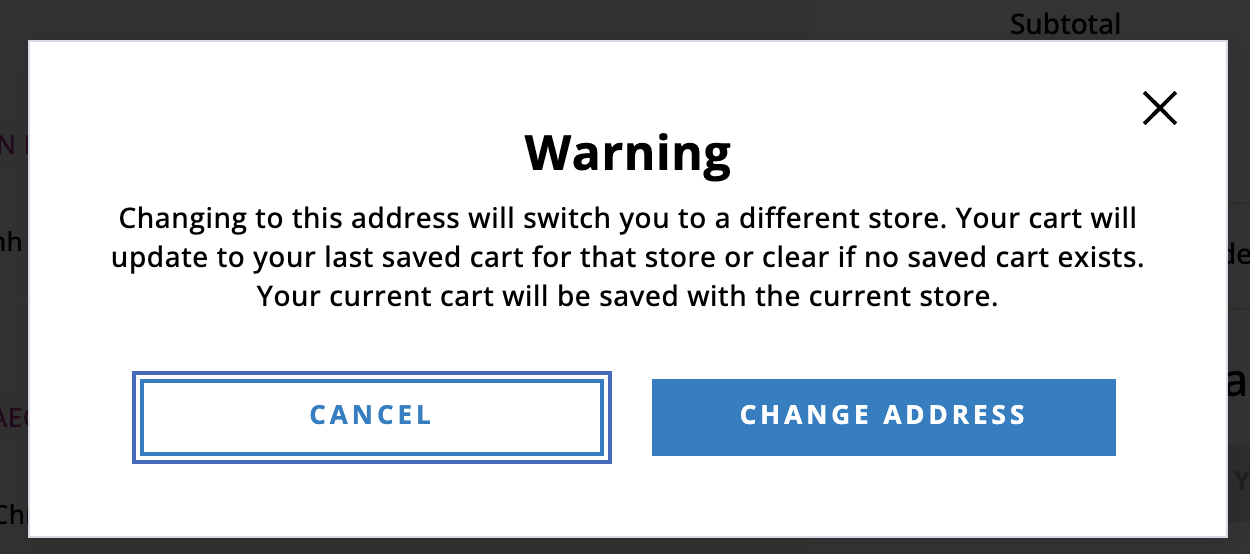
- If an address change updates the store the user is shopping, their cart will update entirely to the new store. If this happens at checkout, the user will ned to agree to the warning before seeing their cart update.
Pick up or Delivery only Malls
- We now support interface for Express malls that are Pickup or Delivery only.
- If a mall is Express Pickup or Express Delivery only, let us know, and the Spresso team will configure this setting for you.
- There will be no changes to how you ingest these products in the inventory file. You will continue to mark FM = 1 in the catalog enrichment file because it is still Express. We will simply configure the interface on the mall level to only display available Express fulfillment options.
- If a mall is configured for only Express Pickup or only Express Delivery, this will be reflected in the store-selection modal and at checkout:
-
In the Select Store Modal, fulfillment method badges will appear only for the available option(s):
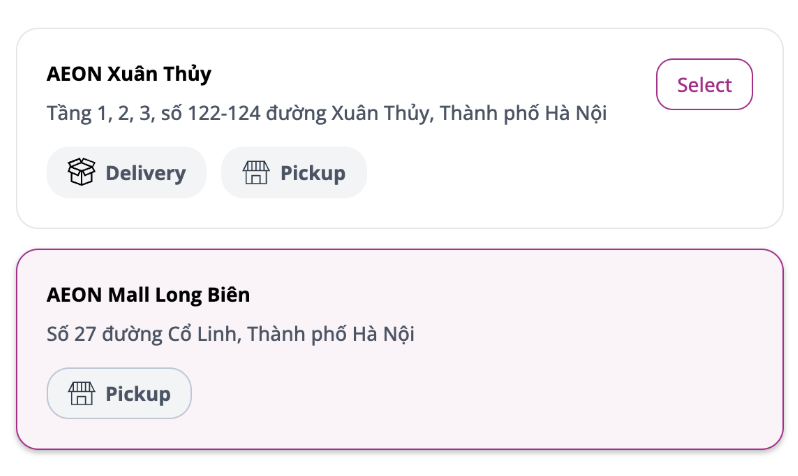
-
At checkout, fulfillment types will appear only for the available option(s):
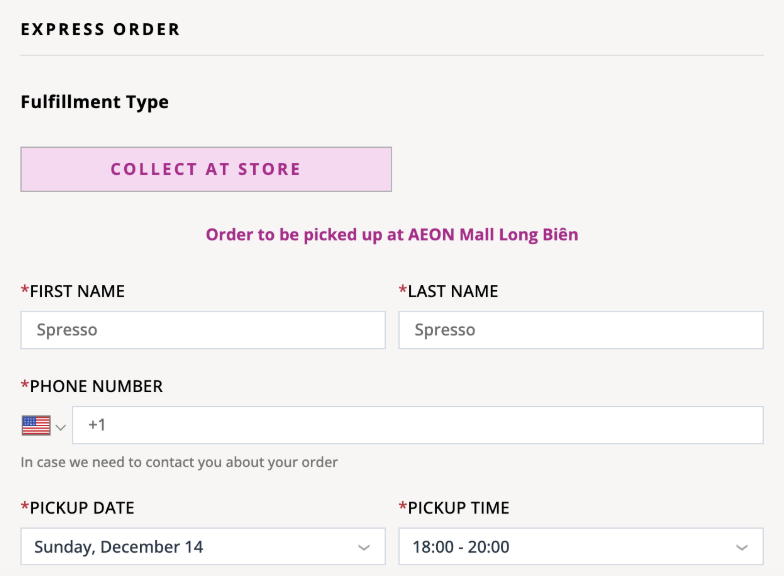
-
Phone Orders
With this feature, carts will be saved on the mall level. Each mall the user can shop will have it's own cart. The same goes for Phone Orders:
-
Phone orders will automatically be synced to the cart of the mall associated with their default address.
-
You can view this mall on the
fulfiller locationfield added to User Addresses: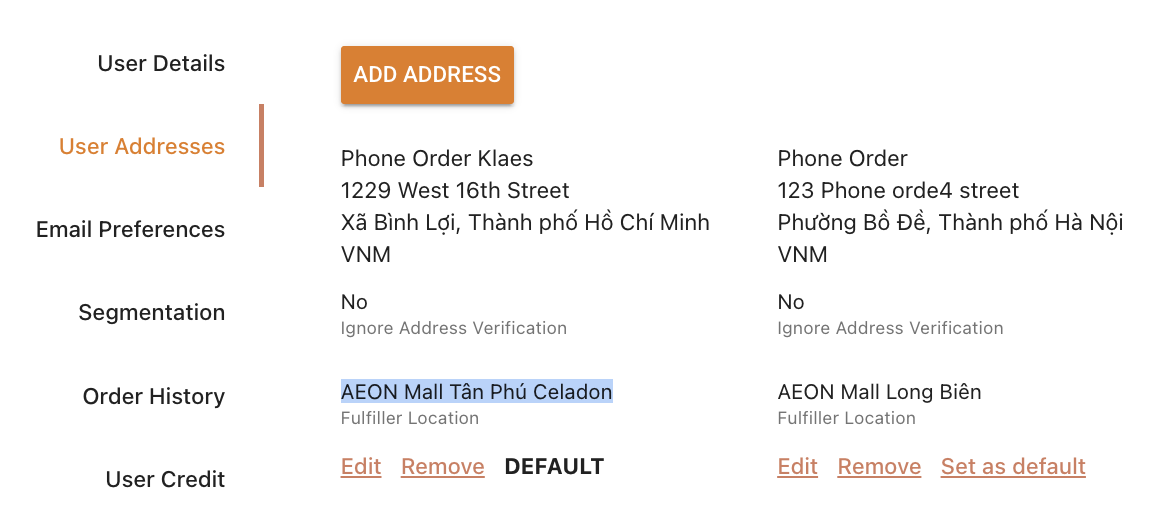
-
You can view this mall on the
fulfiller locationfield within phone orders: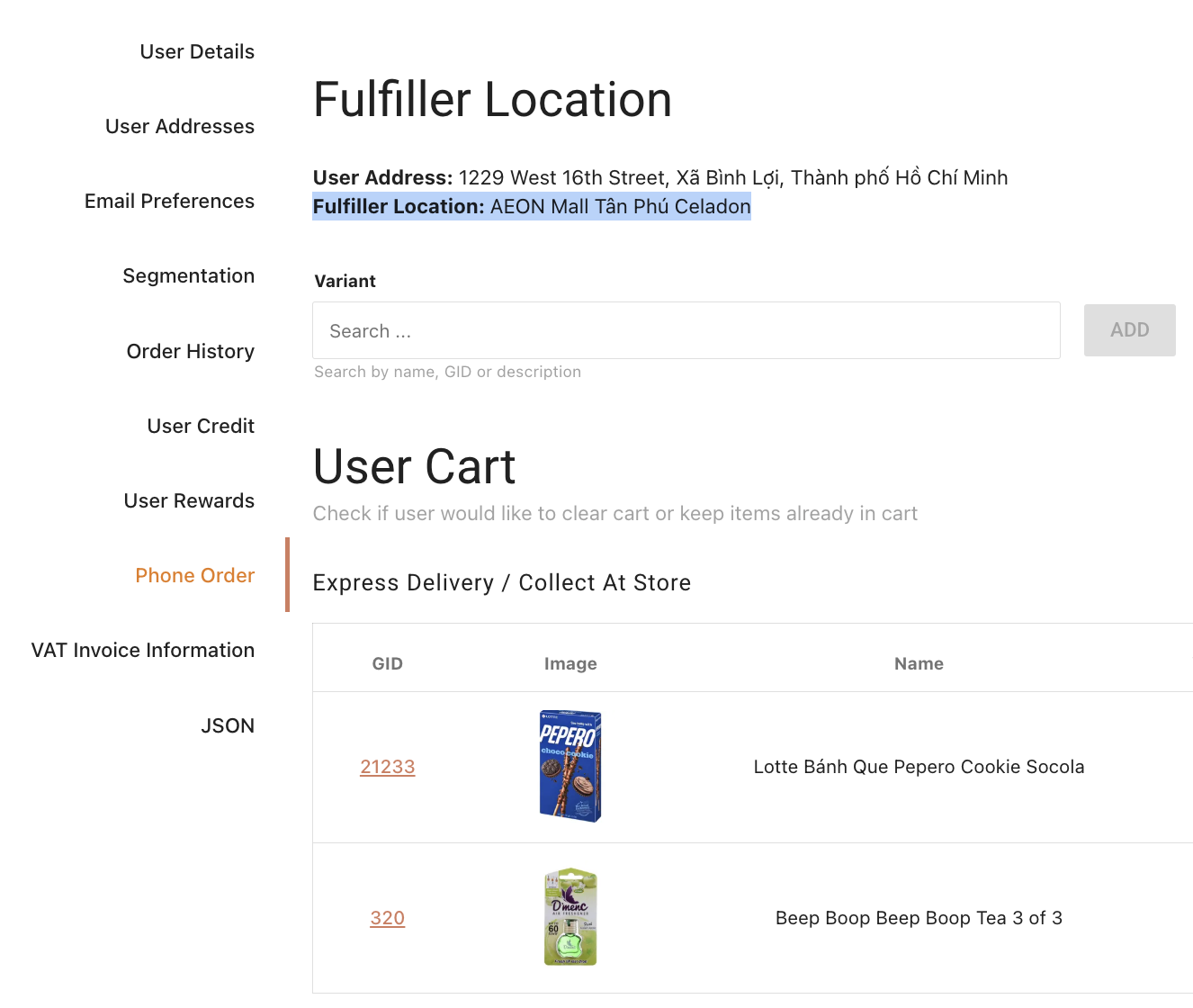
-
If you switch the user's default address to a location supported by a different mall, the phone order cart will update to that mall.
-
At this time, we do not have an interface to select a store for a user in Foxtrot. When a new address is added in Foxtrot, it will automatically be saved with the default fulfiller location for that city/ward. This is simply the first fulfiller location that C/W or Postal Code has been added to.
-
If the mall/fulfiller location needs to be changed, the user will need to log onto web/ios/android and update the selected store from the navigation or account page.
Location Group Mapping Rules
- Express:
- To map a location identifier (C/W or Postal Code) to multiple malls, include it in the
Location Group Bulk Uploadfile for all applicable express location groups.- Ex)
if Phường Chợ Lớn, Thành phố Hồ Chí Minhwill be serviced by both Binh Tanh and Celadon, then that C/W should be mapped to bothBinhTan-ExpressandCeladon-Expresslocation groups in the file.
- Ex)
- To map a location identifier (C/W or Postal Code) to multiple malls, include it in the
- Fast Delivery:
- If an overlapping location identifier offers fast delivery from both malls, then that C/W or Postal Code should also be mapped to both fast delivery location groups.
If fast delivery is only offered for one mall but not the other, that is fine. Please set up the file accordingly.
- If an overlapping location identifier offers fast delivery from both malls, then that C/W or Postal Code should also be mapped to both fast delivery location groups.
- Dual Fulfillment:
- If an overlapping location identifier offers both express and parcel delivery from the same mall, it must be in the express and parcel location groups for both malls.
- A location identifier can't be mapped to 2 express location groups, but only 1 corresponding parcel location group. It must also be in both corresponding parcel location groups.
- Supported:
- C/W or Postal Code in
MallA-ExpressandMallB-Express - C/W or Postal Code in
MallA-Express,MallA-Parcel,MallB-Express,MallB-Parcel
- C/W or Postal Code in
- Not Supported:
- C/W or Postal Code in
MallA-Express,MallB-Express,MallB-Parcel- This creates an faulty scenario where the user can select to shop Mall A, but have parcel items fulfilled from Mall B. We need to ensure all fulfillments are from the same mall.
- C/W or Postal Code in
MallA-Express,MallA-Parcel,MallB-Express- This creates an faulty scenario where the user can select to shop Mall B, but have parcel items fulfilled from Mall A. We need to ensure all fulfillments are from the same mall.
- C/W or Postal Code in
- Standard Delivery:
- If a location identifier offers only standard delivery, that C/W or Postal Code should continue to only be mapped to one location group. Do not map it to multiple parcel location groups.
- Nationwide Malls:
- If Nationwide Malls (AEON Fulfillment Center, AEON Big Fulfillment Center) are enabled for your organization, they will not appear in the store selector modal.
- Users whose postal codes are only mapped to these Nationwide Malls will not be able to select a store. They will automatically be mapped to AEON Fulfillment Center.
- Nationwide Malls will never appear in the select store modal.
- All Fulfiller Locations marked
Always Complements Fulfiller Locationsare considered Nationwide Malls. - Nationwide products will continue to be available in the shopping experience alongside items from the user’s selected local mall.
- If Nationwide Malls (AEON Fulfillment Center, AEON Big Fulfillment Center) are enabled for your organization, they will not appear in the store selector modal.
Updated 7 months ago