
Search Config
To manage search settings, navigate to the Search Config page in Foxtrot.
Overview
- Search Config is where you set up the keywords customers see while using search on your website and mobile apps.
- Two features are set up on this page:
- Trending Search: keywords shown on the search landing page, which customers see after opening search and before typing
- Related Keywords: suggested keywords shown in the dropdown while a customer types in the search box
- If nothing is set up on this page, search works the same as before. Trending Search keeps showing the dynamic list, and Related Keywords keeps showing the automatically generated suggestions.
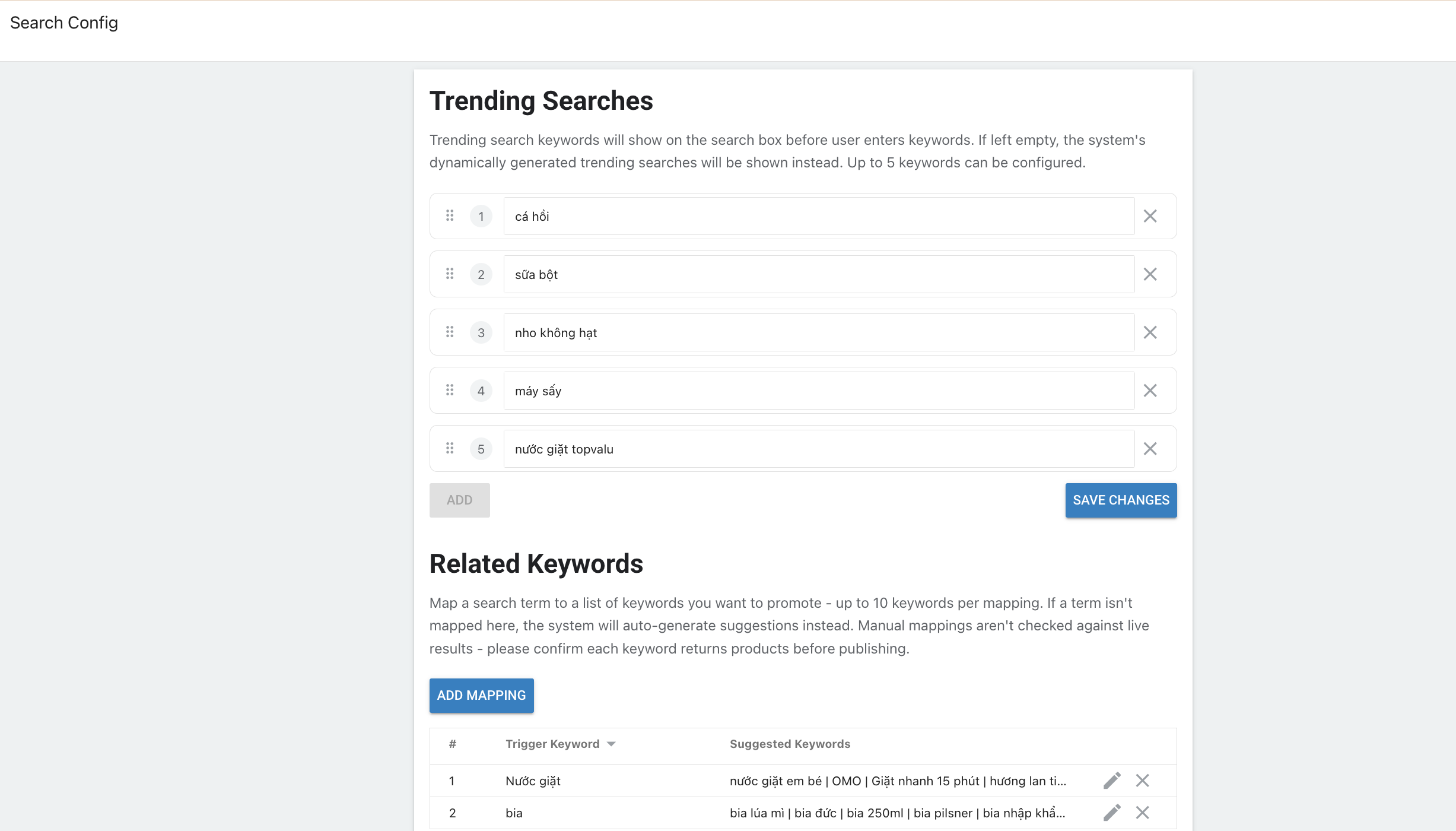
Trending Search
Trending Search shows a list of keywords on the search landing page, before the customer types. Customers can tap a keyword to search for it.
- If keywords are set up here, they replace the dynamic trending list.
- If no keywords are set up, the dynamic trending list displays as before.
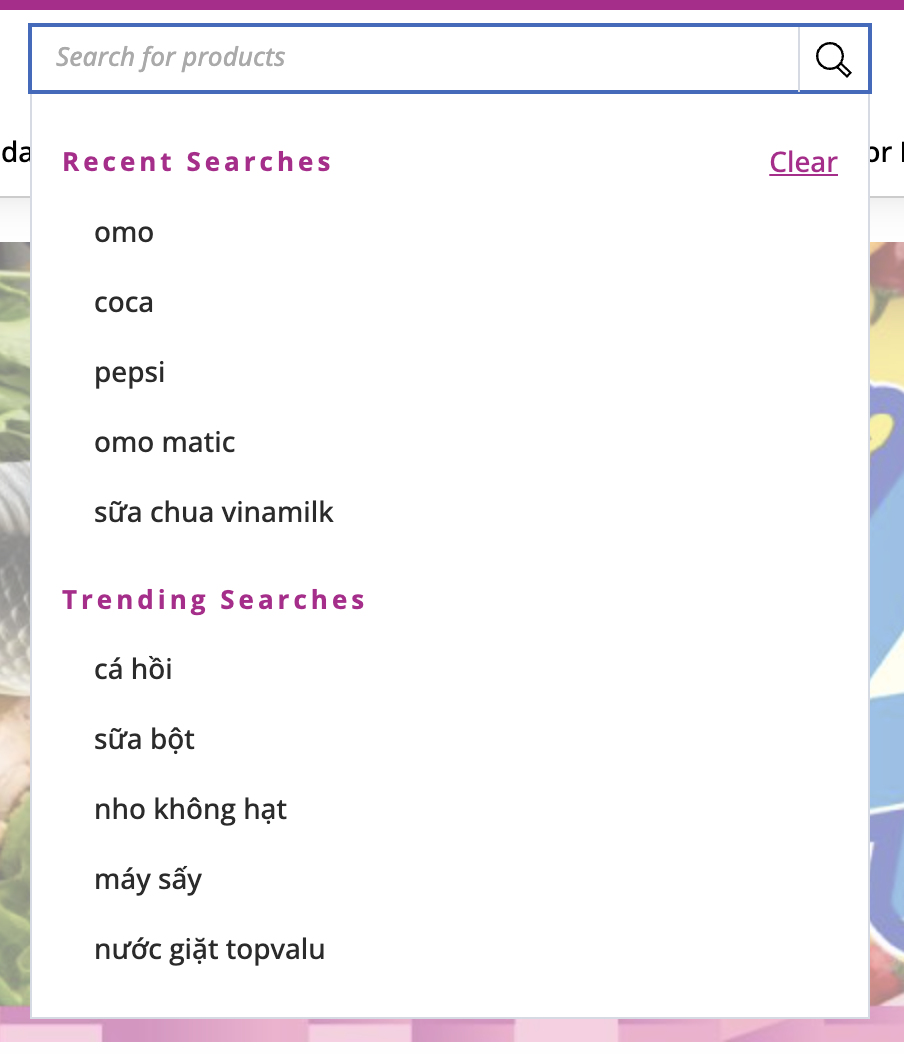
Trending Search: Configuration
Steps:
- Go to Foxtrot > Search Config
- Add trending search keywords
- Max 5 keywords
- Max 60 characters per keyword
- Drag and drop the keywords into the order they should show on site
- Click Save Changes
Related Keywords
Related Keywords are suggested keywords shown in the dropdown while a customer types in the search box. They help customers find the right search term faster.
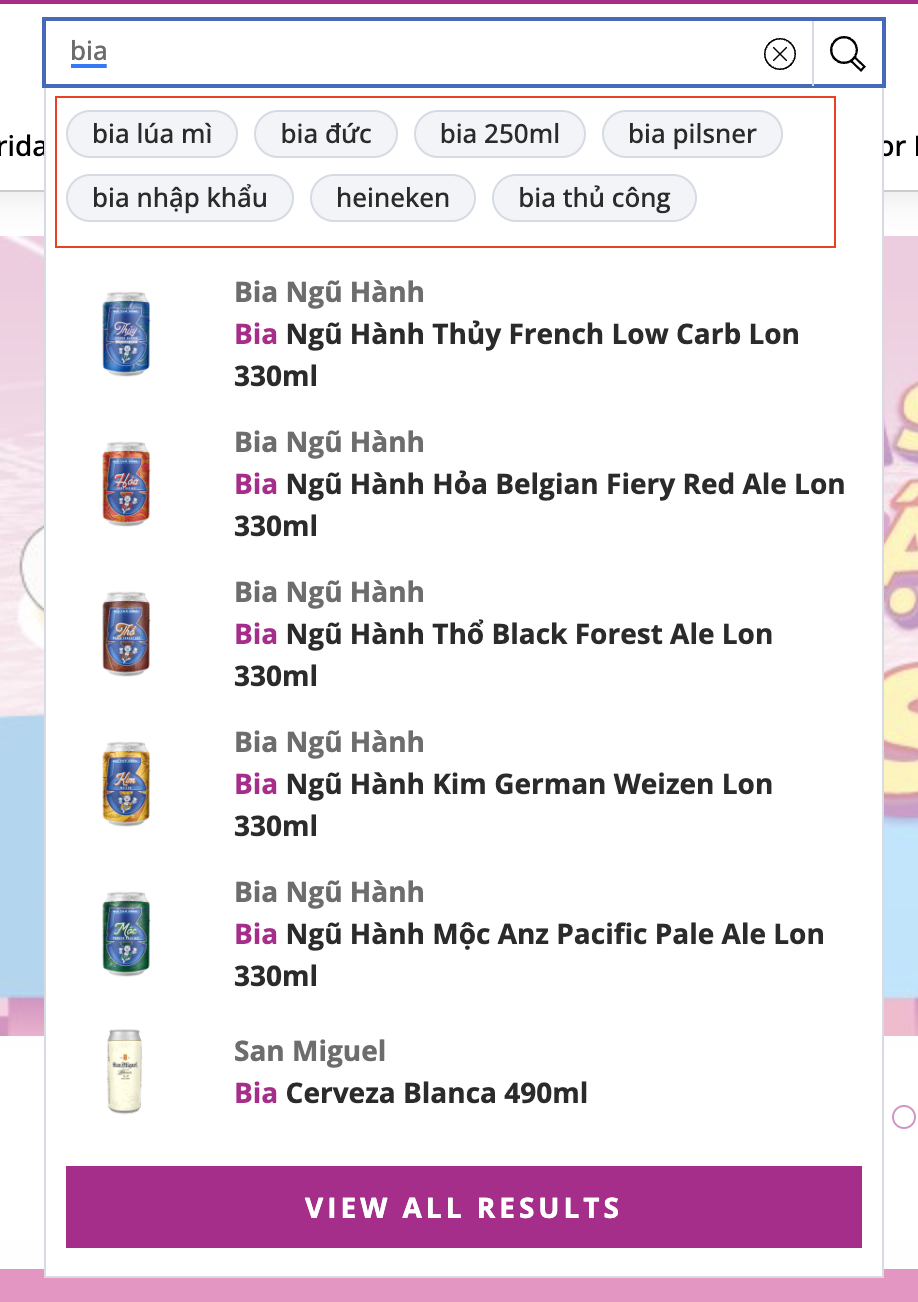
There are two sources of Related Keywords:
- Manual mappings: set up by admins on the Search Config page. A mapping links a trigger term to a list of related keywords.
- Automated suggestions: generated by the system from search history and existing product names. Example: typing "nho" can suggest "nho xanh không hạt" or "nho khô".
- Only keywords that return results are shown, so customers are never led to an empty results page.
- No setup is needed for automated suggestions.
Priority rules:
- If a manual mapping is set up for a term, its keywords show instead of the automated suggestions.
- If no manual mapping is set up for a term, the automated suggestions show.
- To promote specific keywords for a campaign, use a manual mapping. It overrides the automated list.
Related Keywords: Configuration
Steps:
- Go to Foxtrot > Search Config
- Click Add Mapping
- Trigger Term: The term the customer types that will show the related keywords
- Min 3 characters, max 50 characters
- Related Keywords: The keywords customers will see in the dropdown when they type the trigger term
- Up to 10 keywords per mapping
- Min 3 characters, max 60 characters per keyword (including spaces)
- Drag and drop the keywords into the order they should show on site
- Click Save
- Max 50 mappings can be set up
Related Keywords: Tips
- Manual mappings are not checked against live search results. Before publishing, search each keyword on site to confirm it returns products.
- Use manual mappings for campaign or seasonal keywords you want to promote. Leave other terms to the automated suggestions.
Updated about 2 hours ago
Did this page help you?